

What you need before you start
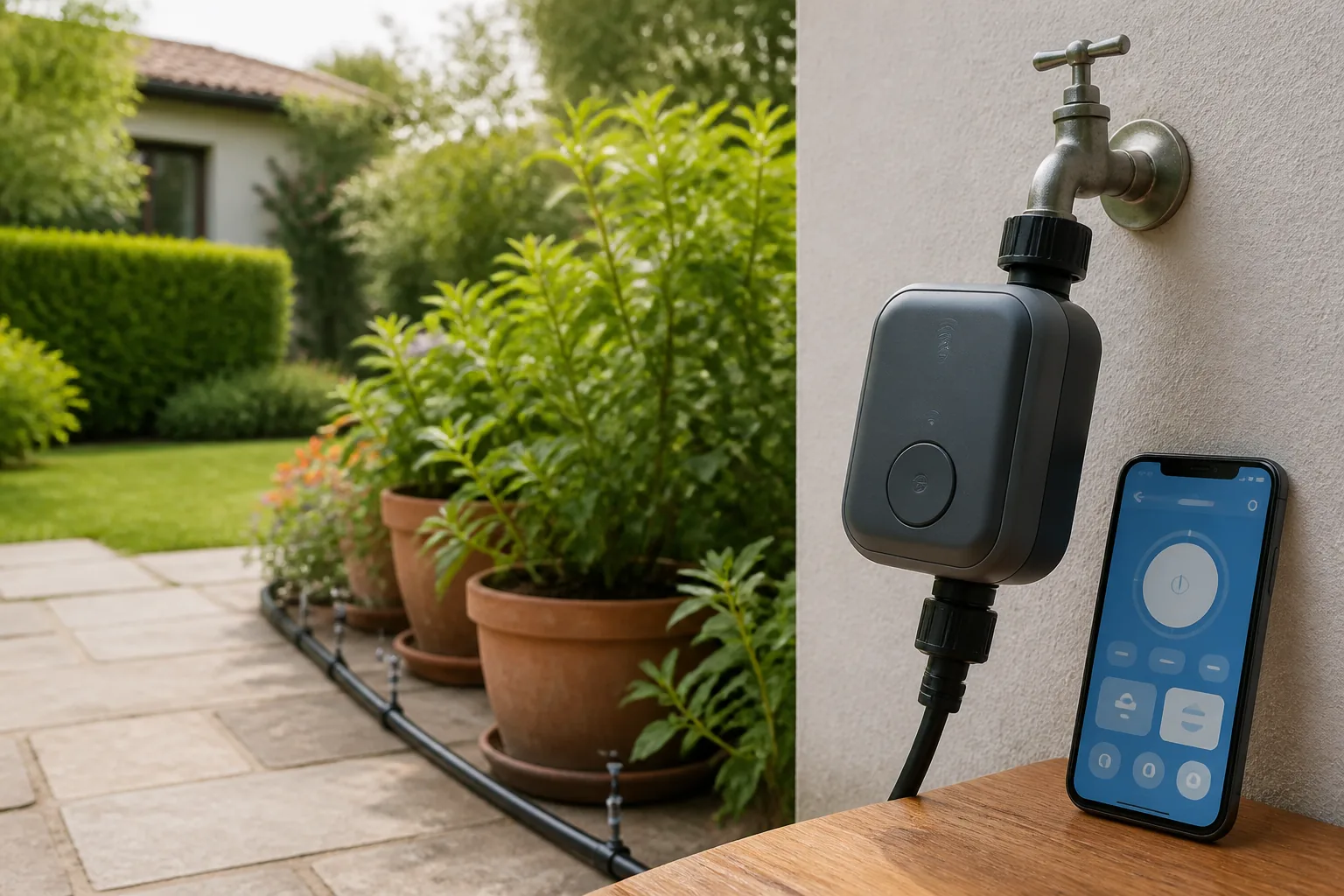
Before unboxing your WiFi timer, confirm you have everything the setup requires:
- 2.4 GHz WiFi signal at the installation point: Stand at your outdoor faucet with your phone and check signal strength. If WiFi signal is weak, a WiFi extender placed near a window on that side of the house solves the problem. Most home routers broadcast both 2.4 GHz and 5 GHz — you need the 2.4 GHz band. Many modern "mesh" networks combine both into one network name, which can cause pairing issues (see Step 2 troubleshooting).
- Outdoor faucet with standard 3/4-inch (19 mm) thread: The vast majority of North American and European outdoor taps use this thread. If your tap has a different size, fittings and adapters are inexpensive and available at any hardware store.
- Batteries or power source: Most single-zone faucet timers run on 2 AA batteries (typically included). Larger multi-zone controllers may require an AC adapter or 9V battery. Check the product listing before purchase if battery runtime matters — in cold climates, lithium batteries significantly outlast alkaline.
- Smartphone (iOS 12+ or Android 6+): Download the manufacturer app before beginning installation — this saves time during the pairing process.
- 15–30 minutes of uninterrupted setup time: The process is simple but benefits from doing it in one session. Interruptions during WiFi pairing (particularly on step 2) are the most common cause of failed first attempts.
Step 1: Install the timer hardware
Turn off the outdoor water supply if possible, or ensure the faucet is closed. Hand-tighten the WiFi timer onto the faucet outlet — clockwise, as standard. Most timers include a rubber washer pre-installed in the inlet; check it is seated correctly before tightening. If no washer is present, use PTFE (plumber's) tape on the thread to prevent drips.
Insert the batteries (usually 2 AA). Some timers power on immediately; others require pressing the power button. The timer's display or LED indicator confirms it is active. At this point, do not connect your hose or drip system yet — you want the timer to complete WiFi pairing before water flows, so that a leak during setup does not go unnoticed while you are focused on your phone screen.
If your installation uses a multi-zone controller (wall-mounted, connected to solenoid valves for multiple garden zones), the physical installation is more involved: mount the controller on a sheltered wall, connect valve wires to the numbered terminals, and ensure the power supply (AC transformer or battery pack) is connected before starting the app pairing. Multi-zone controllers are beyond the scope of this guide but follow the same app-pairing logic once powered.
Step 2: Connect to home WiFi via the app
Open the manufacturer app and create an account if you have not already. Tap "Add Device" or "+" and select your timer model from the list. Follow the on-screen pairing wizard — the app will ask you to confirm you are on 2.4 GHz WiFi and prompt you to enter your WiFi password.
The timer typically enters pairing mode by pressing and holding a button for 5–10 seconds until an LED flashes rapidly. Keep your phone within 2–3 metres of the timer during pairing. The process usually completes in 60–120 seconds; if it times out, see the troubleshooting list below.
Common pairing failures and fixes:
- Timer shows "Connection failed": Your phone may have switched back to 5 GHz during the pairing process. Go to your phone WiFi settings, manually select the 2.4 GHz network name (often shown as "NetworkName_2G" or similar) and restart the pairing wizard.
- App cannot find the device: Most routers have a "client isolation" security feature that prevents devices on the same network from seeing each other. Log into your router settings and disable AP/client isolation, then retry pairing.
- Timer pairs but shows "Offline" immediately: The router is too far from the faucet. Move a mesh node or WiFi extender closer to the installation point and retry.
- Gardena-specific: If using Gardena Smart Water Control, the device pairs via the Gardena Smart Gateway (sold separately), not directly to your home router. The gateway plugs into your router via ethernet and creates its own 868 MHz radio link to garden devices.
Step 3: Create a watering schedule
Once paired, navigate to the Schedules or Programs section of the app. Tap "New Schedule" and set:
- Watering days: For most climates, 3 days per week (Monday, Wednesday, Friday, or similar) is sufficient for established lawns and garden borders. Vegetable gardens in summer may need daily watering. New turf should run daily for the first 2–3 weeks.
- Start time: Early morning (5–7 AM) is best. Watering at dawn reduces evaporation loss (afternoon sun can lose 20–30% of delivered water), reduces fungal disease risk (foliage dries quickly after sunrise), and avoids the pressure drops that occur when neighbours use water during the day.
- Duration per zone: Start with these baselines and adjust after observing soil moisture: fixed spray heads (20–30 min), rotary sprinkler heads (45–60 min), drip emitters at 2 L/h (30–45 min for garden beds). Set conservatively at first — overwatering is as harmful to plants as underwatering, and you can always increase duration.
Enable Smart Watering (called "Weather Intelligence" in Orbit B-hyve, "Smart Scheduling" in some Rain Bird apps). This feature connects to local weather station data and adjusts or skips sessions automatically. On a day when 10 mm of rain is forecast, the system skips that day's session. In a prolonged heatwave, it may extend session duration based on evapotranspiration calculations. Studies show Smart Watering reduces total garden water use by 25–50% vs a fixed schedule run unchanged year-round.
Orbit B-hyve Smart WiFi Hose Faucet Timer
- ✓ Controls 1 zone from outdoor faucet — no hub required
- ✓ Built-in WiFi (2.4 GHz): direct connection, no bridge needed
- ✓ Weather Intelligence automatically adjusts or skips sessions
- ✓ B-hyve app: iOS & Android, remote access from anywhere
- ✓ Manual override button on the timer body
- ✓ Runs on 2 AA batteries (included) — up to 1 year battery life
No verified direct Amazon.com listing is linked for this exact model.
Step 4: Test and fine-tune
Before finalising your schedule, run a manual test cycle from the app. Tap "Manual Run" or "Quick Run" and set a 5-minute test. Walk the irrigation area and observe the coverage: check that every sprinkler head rotates fully, every drip emitter is flowing and no connections are dripping at joints. A leaking connection usually requires tightening by hand (with the water off) or adding PTFE tape to the thread.
To accurately calibrate spray head duration, use the tuna-can method: place empty, straight-sided cans across the lawn and run the irrigation for 15 minutes. Measure the depth of water in each can. A well-calibrated system delivers 6–10 mm per session. Multiply the measured depth to calculate how long you need to run to deliver your target (most established lawns need 25–38 mm per week). Adjust schedule duration accordingly.
After one week of normal operation, check soil moisture in several spots with a screwdriver or soil probe: push it 15 cm (6 inches) into the soil. If the soil is saturated at the surface and dry below 8 cm, your duration is too short. If water is pooling or running off before soaking in, your duration may be too long (or the soil compaction is reducing infiltration rate — consider core aeration). Adjust duration in 5-minute increments until you achieve consistent moist-but-not-saturated soil at 15 cm depth 30 minutes after each cycle.
Advanced features: rain skip, freeze protection, voice control
Rain skip: Available in most WiFi timer apps. The system monitors local weather forecasts and skips scheduled sessions when a threshold amount of rain is predicted (usually configurable: 3 mm, 6 mm or 12 mm). After confirmed rainfall, many systems also impose a post-rain delay (typically 24 hours) before resuming normal scheduling. Enable this feature and set the threshold to 6 mm for most garden types — this eliminates the most common waste scenario (irrigation running just before or during rainfall).
Freeze protection: Automatically suspends irrigation when temperatures are forecast to drop below 2°C (35°F). Running irrigation near freezing creates dangerous ice on paths and roads, and can damage drip emitters and hoses. Enable this feature year-round — it does not affect warm-weather operation and eliminates a risk during early spring and late autumn shoulder seasons.
ET-based scheduling: Available in higher-end controllers (Rachio 3, Hunter Hydrawise, Rain Bird LNK WiFi module). Evapotranspiration (ET) scheduling uses local weather station data (temperature, humidity, wind, solar radiation) to calculate exactly how much water the plants have used since the last irrigation, and waters precisely to replace that amount. It is the most scientifically accurate watering method and typically saves 30–40% water compared to fixed schedules, but requires accurate zone setup (turf type, sprinkler type, slope, sun/shade) to deliver correct results.
Voice control: Most major WiFi timers integrate with Amazon Alexa and Google Home. Once linked through the respective smart home app, you can say "Alexa, ask B-hyve to water zone 1 for 10 minutes" or "Hey Google, stop the irrigation." Voice control is useful for on-demand manual runs when your hands are occupied (carrying plants, gardening tools).
Rachio 3 Smart Sprinkler Controller (8-Zone)
- ✓ 8-zone WiFi controller for in-ground sprinkler systems
- ✓ Rachio app: iOS & Android with full remote access
- ✓ Weather Intelligence automatically skips or adjusts sessions
- ✓ Integrates with Amazon Alexa, Google Home, and Apple HomeKit
- ✓ Easy DIY install — replaces standard sprinkler timer in 30 minutes
- ✓ Local processing: schedule continues if cloud connectivity drops
No verified direct Amazon.com listing is linked for this exact model.
Common errors and fixes
Timer shows "Offline" in the app: The most common cause is a router restart or WiFi password change. Open the timer's settings in the app and re-enter the WiFi credentials. If the timer has no on-device display, you may need to press-hold the reset button and repeat the full pairing process. A permanent solution for routers that occasionally restart is to set a static IP address for the timer in your router's DHCP settings — this prevents IP conflicts after router restarts.
App won't connect during pairing: Check you are on 2.4 GHz WiFi (not 5 GHz). Check the router does not have MAC address filtering enabled (which blocks new devices). If using a mesh network, log into the mesh app and temporarily disable "band steering" (which forces all devices onto 5 GHz), complete the timer pairing, then re-enable band steering.
Timer runs but no water flows: Check that the faucet (tap) is actually open. On some setups, the faucet is left in the closed position and the timer controls the solenoid valve — but the timer solenoid only works when the upstream faucet is open. Open the faucet fully and test again. Also check that the hose or drip line downstream of the timer is not kinked, and that the filter (if present) is not clogged.
Schedule not saving: Some timers require you to tap a "Save" or "Confirm" button after setting the schedule — the schedule is not saved automatically when you navigate away from the screen. Check the app's schedule list to confirm your new schedule appears and shows as "Active." If it does not appear, re-enter the schedule and confirm with the save button before closing the screen.